How to Use Call Transcription and AI Insights in DialNext
Call transcription helps businesses turn recorded conversations into searchable, readable text. Speech-to-text technology converts spoken words into written text. With DialNext, users can review customer and agent conversations, follow timestamps, and revisit important parts of a call.
DialNext also provides AI Insights through the Overview section. Users can explore call summaries, conversation chapters, identified topics, action items, sentiment indicators, and call quality metrics.
This guide explains how to access call transcripts, review recordings, understand AI-generated insights, and use call quality information to get more value from every conversation.
How to Access Call Transcription in DialNext
You can access call transcripts directly from the Call Logs section in DialNext. Follow these steps to find and open a transcript:
- Log in to your DialNext account.
- Click Call Logs in the left sidebar.
- Select Active or Archived, depending on where the call is listed.
- Use the available filters to find the call. You can filter by All, Inbound, Outbound, Missed, or Voicemail.
- Select the call you want to review from the call list.
- Open the Transcript tab in the call details panel.
DialNext displays the available transcript for the selected call. You can then review the conversation and explore the related call information.
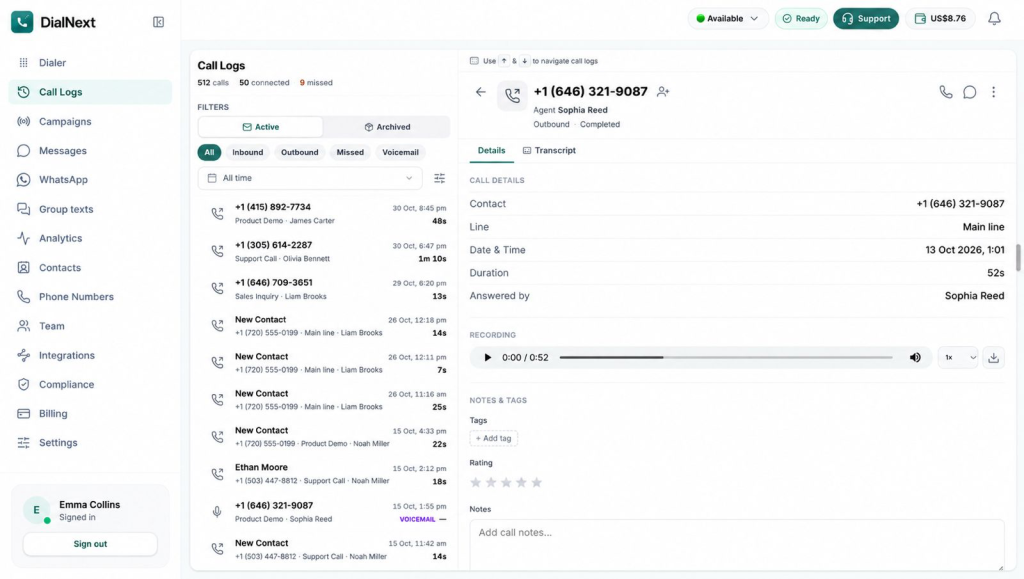
Figure 1: Call Logs in DialNext. This screen displays the Active and Archived call views, available call filters, and selected call details. Users can review call information, access recording controls, and navigate to the Transcript tab.
How to View and Read Call Transcripts in DialNext
After opening the Transcript tab, you can review the conversation between the Customer and Agent. DialNext displays the recognized speech along with speaker labels and timestamps.
The transcript interface helps you follow the conversation and review specific parts of a call.
You can find the following details:
- Speaker Labels: Identify whether each conversation entry belongs to the Customer or Agent.
- Timestamps: See when each part of the conversation occurred.
- Recognized Conversation Text: Read the spoken words converted into text.
- Audio Playback: Use the available audio player to listen to the call while reviewing the transcript.
These details make it easier to follow conversations, revisit important exchanges, and understand what was discussed during a call.
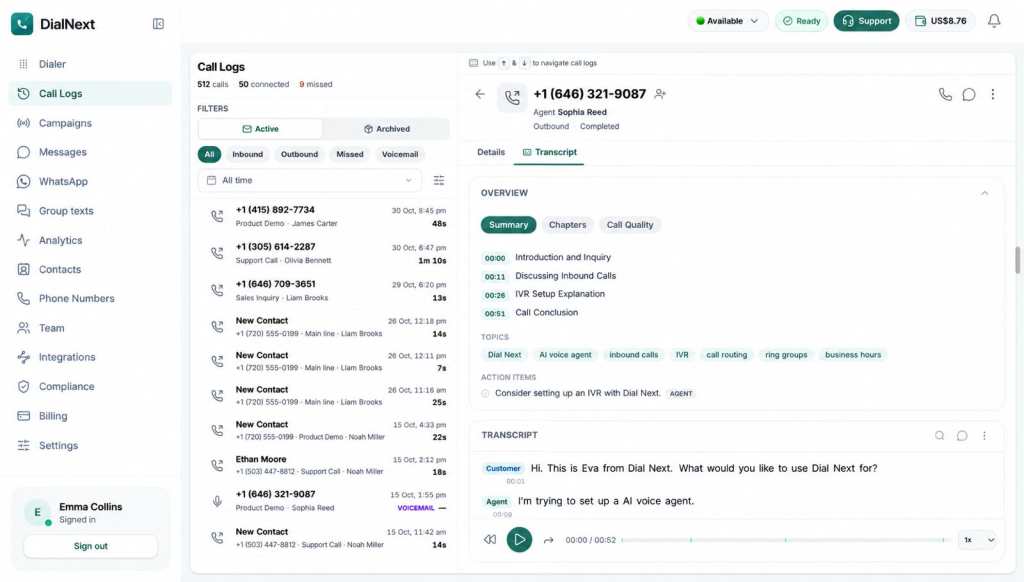
Figure 2: Call Transcript and AI Overview in DialNext. This screen displays the call summary, conversation chapters, identified topics, and action items. The transcript section shows Customer and Agent conversations with timestamps, along with audio playback controls for reviewing the recording.
Understanding Chapters
The Chapters tab organizes a call into separate discussion segments. It helps you navigate the conversation without having to review the entire transcript from beginning to end.
Each chapter includes three key details:
- Timestamp: Shows when the discussion segment begins.
- Chapter Title: Highlights the main subject discussed in that segment.
- Description: Provides a brief overview of the discussion.
To explore the chapters, open the Chapters tab under Overview. Review the chapter timestamps and descriptions to find the discussion segment relevant to your needs.
This makes it easier to review specific discussions, understand the flow of a call, and find relevant information quickly.
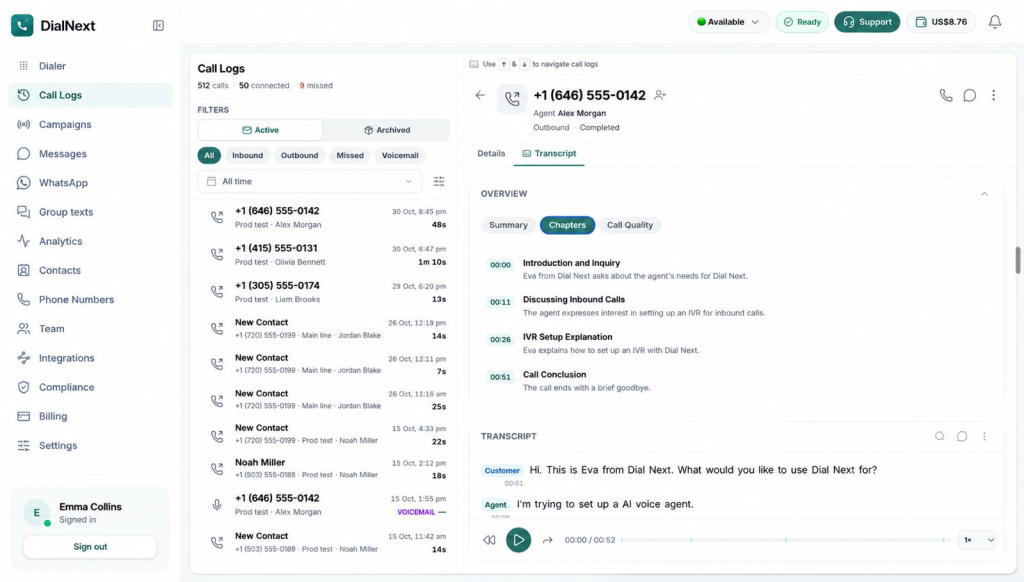
Figure 3: Chapters Overview in DialNext. The Chapters tab organizes call conversations into individual discussion segments. Each segment displays a timestamp, chapter title, and brief description, helping users quickly understand the key stages of a conversation.
Understanding Call Quality
The Call Quality tab provides an overview of different aspects of a recorded conversation. It brings together sentiment indicators, talk distribution, and call metrics to help users review call performance.
You can explore three types of information:
1. Sentiment Analysis
The Sentiment section displays sentiment indicators for different parts of the call:
- Overall: Shows the overall sentiment of the conversation.
- Customer: Displays the customer’s sentiment.
- Agent: Displays the agent’s sentiment.
2. Talk Distribution
Talk Distribution shows how speaking time is divided between the participants and silence.
- Agent: Displays the percentage of time the agent speaks.
- Customer: Displays the percentage of time the customer speaks.
- Silence: Displays the percentage of time without speech.
3. Call Metrics
The Metrics section displays additional information about the conversation:
- Dead Air: Displays the dead air value for the call.
- Interruptions: Shows the number of interruptions.
- Avg Response: Displays the average response value.
- Agent WPM: Shows the agent’s words per minute.
- Customer WPM: Shows the customer’s words per minute.
To access these details, open the selected call and navigate to the Call Quality tab under Overview.
For more information about network factors that can affect call performance, read our VoIP Call Quality and Network Setup Guide.
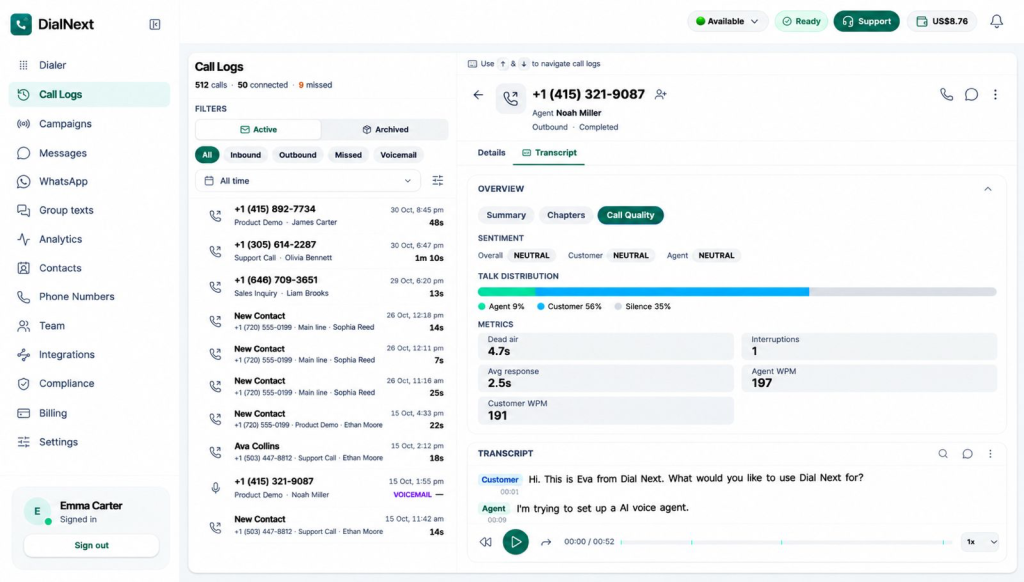
Figure 4: Call Quality Overview in DialNext. This screen displays overall, customer, and agent sentiment, along with talk distribution and key call metrics such as dead air, interruptions, Avg Response, and words per minute (WPM) for both participants.
How to Play and Download Call Recordings in DialNext
DialNext lets you play and download call recordings directly from the call details panel. The built-in audio player provides playback controls to help you review conversations at your preferred speed.
Follow these steps to access a call recording:
- Open Call Logs from the left sidebar.
- Select the call you want to review.
- Open the Details tab in the call details panel.
- Locate the Recording section.
- Click the Play button to listen to the recording.
- Use the playback timeline to move to a specific part of the recording.
- Adjust the volume using the volume control.
- Select a playback speed: 0.75x, 1x, 1.25x, 1.5x, or 2x.
- Click the Download icon to download the recording.
These controls help you review conversations, revisit specific moments, and access recordings when needed.

Figure 5: Call Recording Player in DialNext. Users can play recordings, navigate the audio timeline, adjust volume and playback speed, and download recordings.
Call Too Short
Sometimes, DialNext may not generate an AI summary for a call because the conversation does not contain enough speech.
In such cases, the Summary tab displays a Call Too Short status instead of the usual AI-generated insights.
Why does this happen?
Short conversations, brief exchanges, or repeated greetings may not provide enough speech for DialNext to generate a meaningful summary.
What can you do?
- Review the transcript: Open the Transcript tab to check the recognized conversation text.
- Check the conversation: See whether the call contains enough meaningful speech.
- Review the call recording: Use the audio player to listen to the conversation again.
Even when a meaningful summary is unavailable, you may still be able to review the available transcript entries.
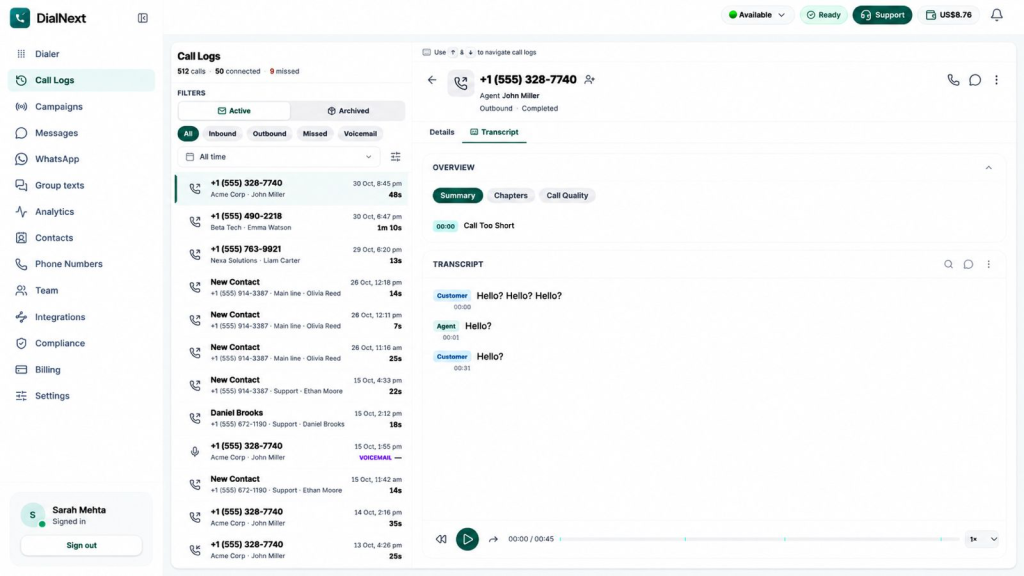
Figure 6: Call Too Short Status in DialNext. When a call does not contain enough speech, DialNext displays the Call Too Short status instead of generating a meaningful AI summary. The transcript remains available for reviewing the recognized conversation.
Frequently Asked Questions
1. How can I access call transcripts in DialNext?
Open Call Logs, select the call you want to review, and click the Transcript tab in the call details panel.
2. What information does a DialNext call transcript include?
A call transcript displays recognized conversation text, Customer and Agent labels, and timestamps for individual conversation entries.
3. What are AI Insights in DialNext?
AI Insights help users review conversations through the Summary, Chapters, and Call Quality tabs. These sections display conversation summaries, topics, action items, sentiment indicators, and call metrics.
4. Why does DialNext show a Call Too Short status?
DialNext displays this status when a call does not contain enough speech to generate a meaningful AI summary. You may still be able to review the available transcript entries.
5. Can I play and download call recordings in DialNext?
Yes. Open the selected call’s Details tab and locate the Recording section. You can play the recording, adjust its volume and playback speed, navigate the timeline, and download it.
6. What metrics are available under Call Quality?
The Call Quality tab displays sentiment indicators, talk distribution, dead air, interruptions, average response, and Agent and Customer words-per-minute (WPM) values.
Conclusion
Call Transcription and AI Insights help businesses get more value from their customer conversations. With DialNext, teams can review call transcripts, explore AI-generated summaries, navigate conversation chapters, and understand call quality through sentiment indicators and performance metrics.
These features make it easier to revisit important discussions, identify follow-up actions, and gain a clearer understanding of customer interactions. By using call recordings and AI Insights together, teams can make more informed decisions and improve their communication processes.
Explore more setup guides, tutorials, and product documentation in the DialNext Help Center.