DialNext Zoho CRM Integration: Setup Guide
The DialNext Zoho CRM integration helps businesses manage customer communication by connecting call and SMS activity with Zoho CRM contact records. Incoming and outgoing calls are logged under Calls, while SMS conversations are recorded as Notes. This helps teams keep customer communication history organized and easily accessible.
How to Integrate DialNext with Zoho CRM
Step 1: Log in to your DialNext account.
Log in to your DialNext account. Use your registered credentials to access the dashboard.
Step 2: Open the Integrations section.
Go to the Integrations section in your DialNext dashboard. Look for the available CRM integrations.
Step 3: Select Zoho CRM.
Find Zoho CRM in the integrations list. Click the Zoho CRM integration card to view its details.
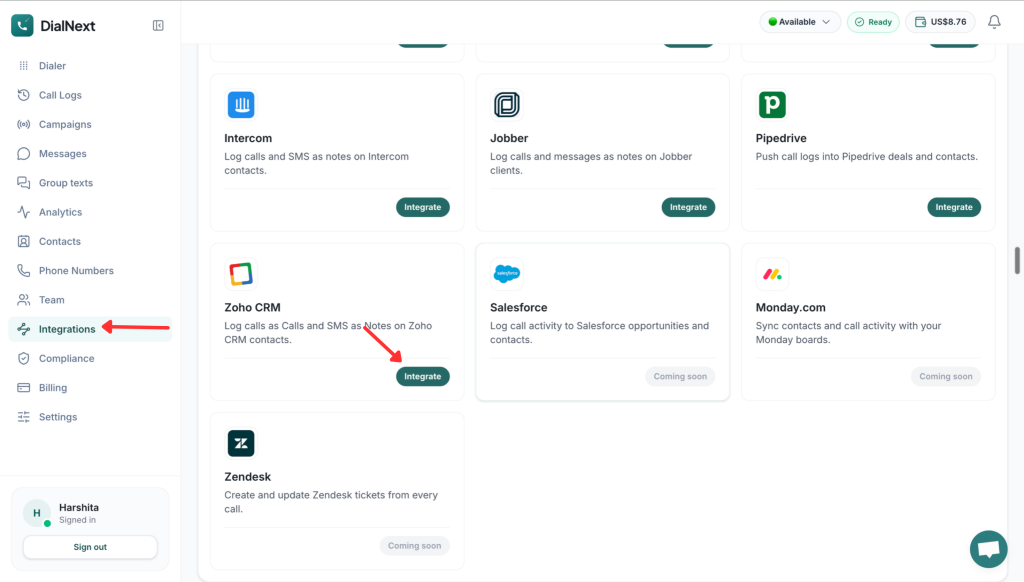
Step 4: Authorize the Connection Between DialNext and Zoho CRM
Click the Integrate button on the Zoho CRM card. This starts the connection process.
Step 5: Complete the Zoho CRM Authorization.
Follow the on-screen instructions to authorize the connection. Complete the required steps to proceed.
Step 6: Configure the Integration
Choose the settings you want to enable. Review your selections and save the changes to complete the setup.
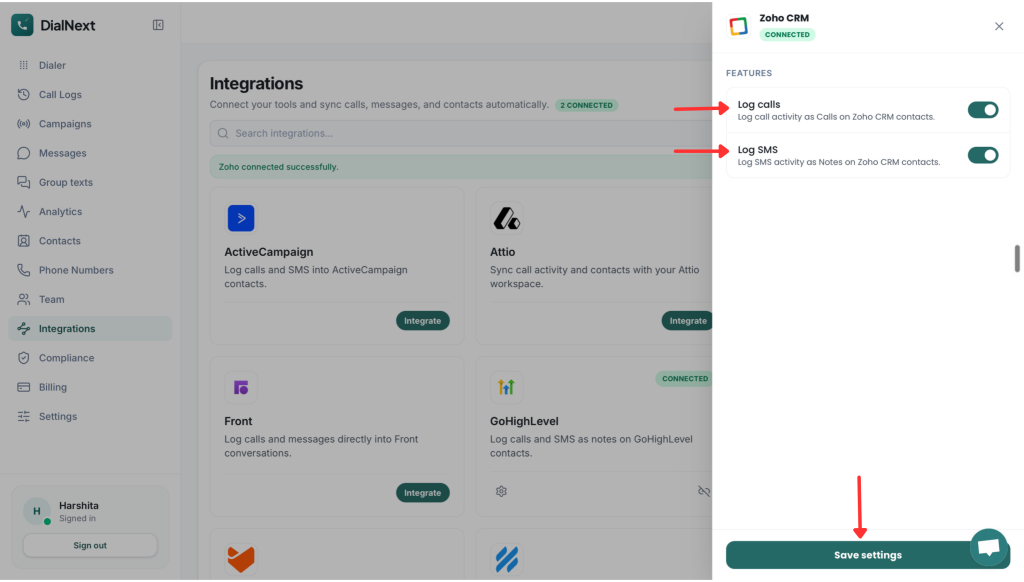
Step 7: Verify the Integration
Open your DialNext dashboard and check the integration status. Make sure Zoho CRM is connected.
Next, check Zoho CRM for call and SMS activity. Incoming and outgoing calls appear under Calls. SMS conversations appear as Notes on the relevant contact records.
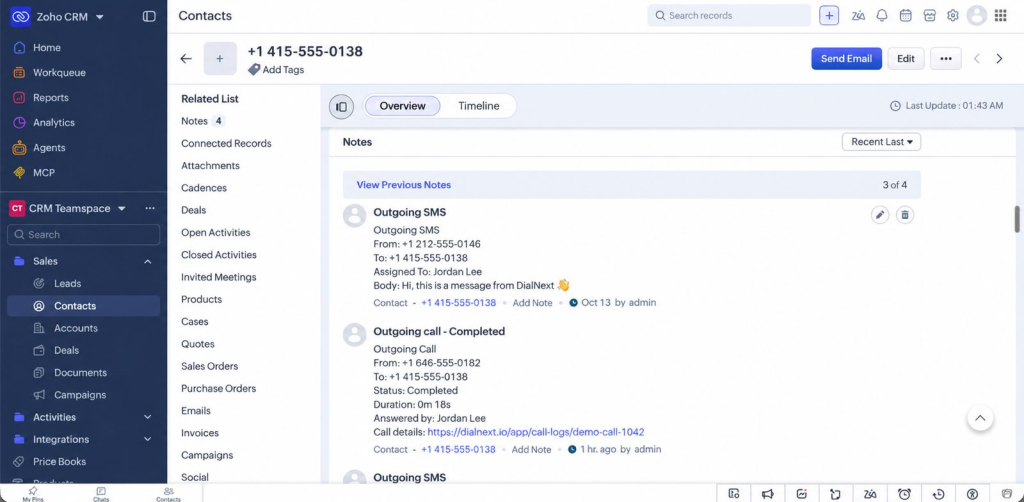
How to View Calls and SMS in Zoho CRM
Once the integration is configured, you can review call and SMS activity in Zoho CRM. Open the relevant contact record to find these details.
1. View Call Logs
Open the relevant contact record in Zoho CRM. Go to the Calls section to view incoming and outgoing call records.
2. View SMS Conversations
Open the same contact record and navigate to Notes. Here, you can review the recorded SMS conversations.
Key Features of the DialNext Zoho CRM Integration
1. Incoming and Outgoing Call Logging
DialNext records incoming and outgoing calls in Zoho CRM. You can review these activities under Calls.
2. SMS Conversation Logging
DialNext records SMS conversations as Notes on relevant contact records. This helps you keep messaging history organized.
3. Contact Communication History
View available call and SMS activity through the relevant contact record. This makes customer interactions easier to review.
4. Organized Customer Records
Keep supported communication records in one place. This helps your team manage customer information more efficiently.
Frequently Asked Questions
1. How does the DialNext Zoho CRM integration work?
DialNext connects communication activity with Zoho CRM. It records calls and SMS conversations on relevant contact records.
2. Where can I find call logs in Zoho CRM?
Open the relevant contact record. Check the Calls section to view incoming and outgoing calls.
3. Where are SMS conversations stored?
SMS conversations appear as Notes on the relevant Zoho CRM contact records.
4. Does DialNext support automatic call logging?
Incoming and outgoing calls are logged as Calls in Zoho CRM. Contact DialNext Support if you need details about sync timing.
5. What should I do if activity is missing?
Check the relevant contact record first. Look under Calls for call logs and Notes for SMS conversations. If the activity is still missing, contact DialNext Support.
Conclusion
The DialNext Zoho CRM integration helps you organize customer communication. It records incoming and outgoing calls under Calls. SMS conversations appear as Notes on relevant contact records.
These records make it easier to review customer interactions in Zoho CRM.
Visit DialNext to learn more about our business communication solutions. If you need help with setup, contact DialNext Support.