DialNext Help Scout Integration: How to Connect Help Scout with DialNext
Connect Help Scout with DialNext to keep your customer communication workflow connected. The DialNext Help Scout integration lets you connect your Help Scout account with DialNext and log calling activity within Help Scout.
How to Integrate DialNext with Help Scout
Follow these steps to connect DialNext with Help Scout :
1. Log in to your DialNext account
First, log in to your DialNext account using your registered credentials.
2. Open Integrations
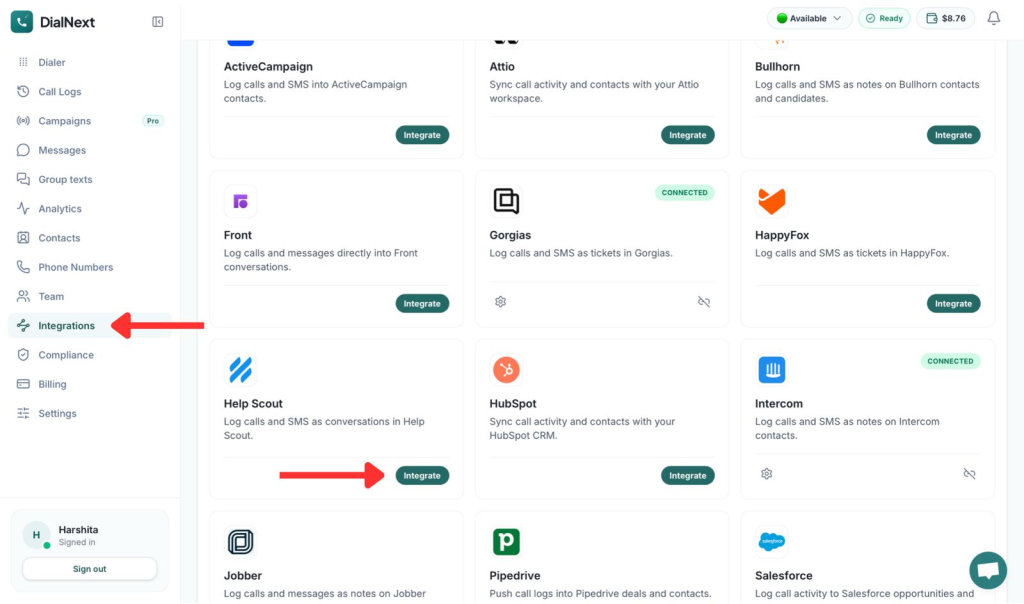
Next, open the Integrations section from your DialNext dashboard. Here, you can view the available integrations.
3. Select Help Scout
Find Help Scout in the integrations list. Then, select it to start the connection process.
4. Connect your Help Scout account
Click the relevant connection button to connect your Help Scout account with DialNext.
5. Authorize the connection
Next, authorize the connection between DialNext and Help Scout. This allows the two platforms to connect.
6. Configure the integration
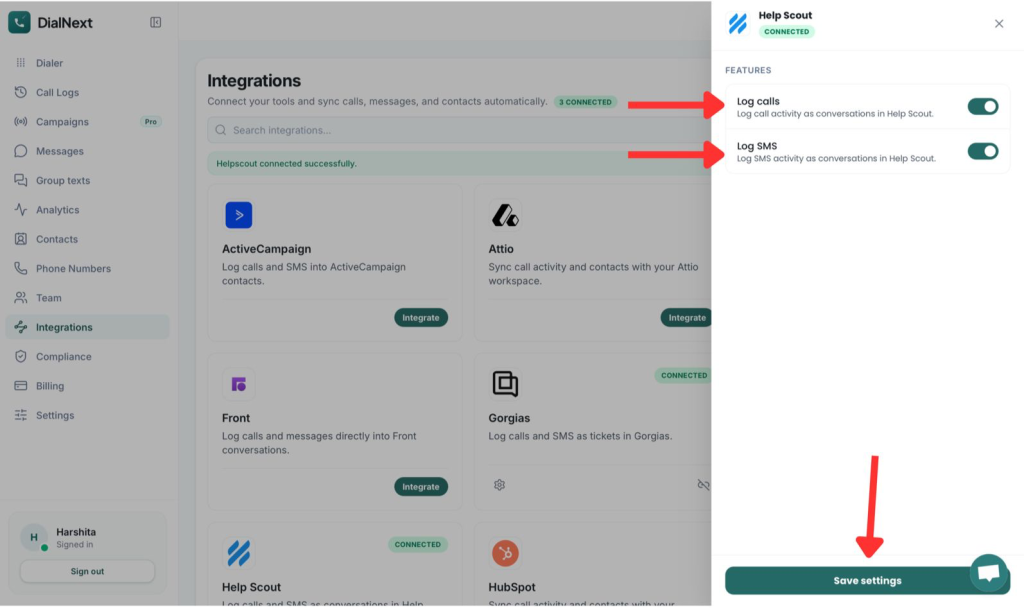
Choose the available settings or features you want to enable. Then, save your settings to complete the setup.
7. Verify the integration
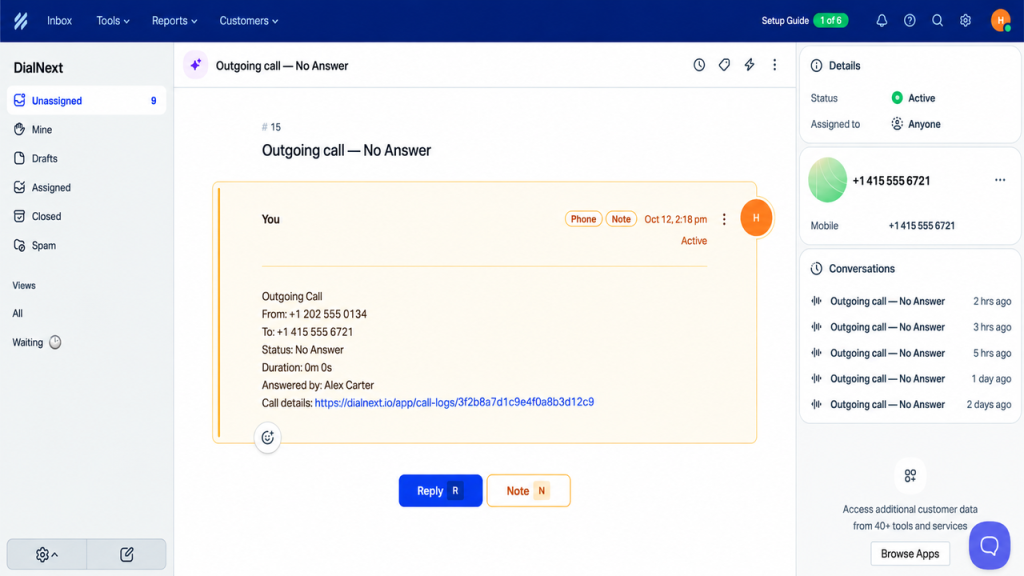
Finally, make a test call or send a test message from DialNext. Check Help Scout to confirm that the activity is synced correctly.
Your DialNext Help Scout integration is now connected.
What does the DialNext Help Scout integration do?
The DialNext Help Scout integration allows calling activity from DialNext to be logged in Help Scout. This helps support teams keep relevant customer communication activity alongside the customer’s conversation history.
As a result, teams can keep their calling workflow connected to their Help Scout support workflow.
How to use the integration
Once the DialNext Help Scout integration is connected, use DialNext for your calling workflow. Help Scout can then keep the related call activity with the customer conversation.
- Make and manage calls through DialNext.
- View logged call activity in the relevant Help Scout conversation.
- Check available call details to keep track of customer interactions.
- Manage customer conversations in Help Scout while keeping calling activity connected.
If you encounter any issues, you can reach us at help@dialnext.io