How to Configure Business Hours in DialNext: A Step-by-Step Guide
Business hours help you define when your DialNext workspace is available during the week. By setting a working schedule, you can align workspace availability with your team’s operating hours. As a result, your team can manage its weekly availability more clearly.
To get started, open the Availability section under Settings. From there, you can select your timezone and choose the working days and hours that apply to your workspace. In this guide, we’ll walk you through the complete setup process step by step.
Step 1: Open Settings
First, log in to your DialNext account. Once you reach the dashboard, look at the left sidebar.
Next, click Settings to open your workspace settings. You can then access the options required to configure your working schedule.
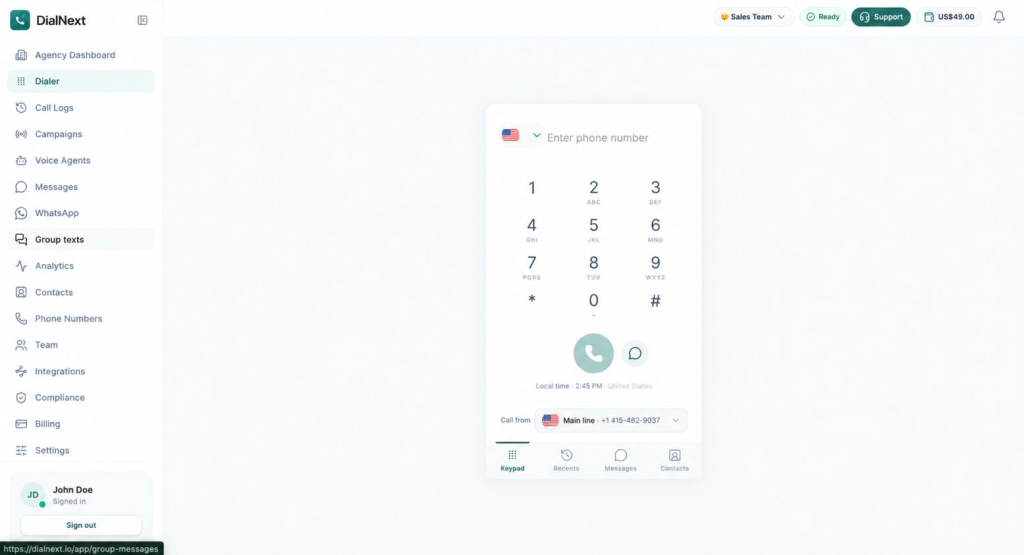
Step 2: Open the Availability Tab
Once you open Settings, you’ll see three tabs: Account, Availability, and Calling.
Now, select Availability to access your workspace availability settings. Here, you’ll find the Working hours section, where you can configure your weekly schedule.
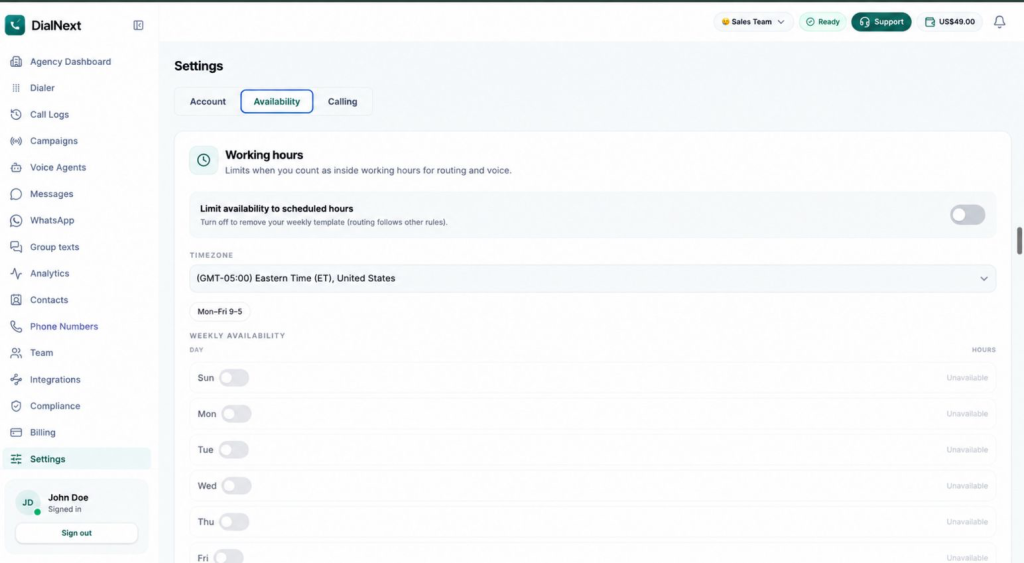
Step 3: Enable Scheduled Working Hours
Under the Availability tab, locate the Working hours section.
Within this section, you’ll find the Limit availability to scheduled hours toggle. Turn it on to enable a weekly working schedule.
Once enabled, you can define the days and hours during which your workspace is scheduled to be available. This way,DialNext can use your configured schedule to determine workspace availability.
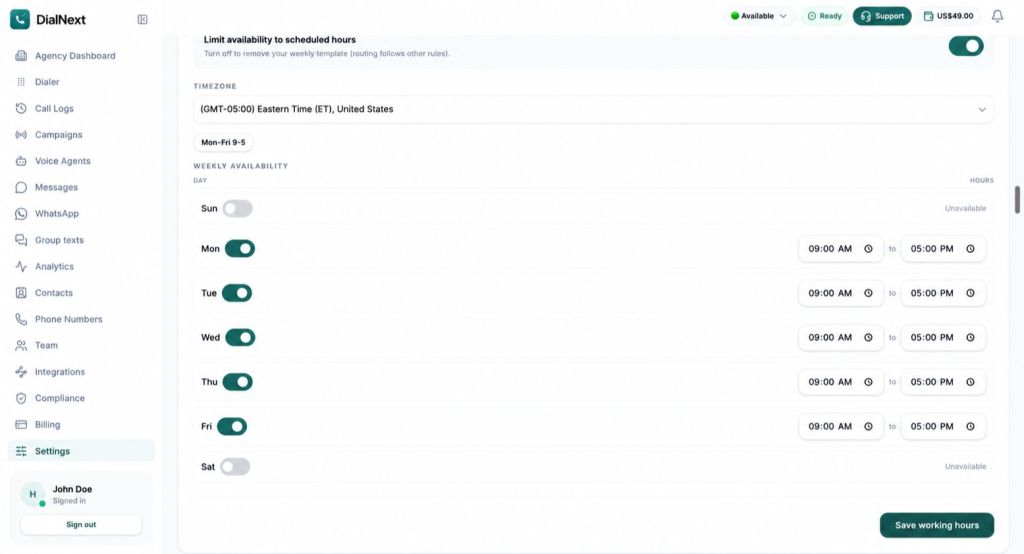
Step 4: Select Your Timezone
After enabling scheduled working hours, select the appropriate timezone from the Timezone dropdown.
This is important because your working schedule should match your team’s local time. For example, if your team operates in India, select (GMT+5:30) Chennai, Kolkata, Mumbai, New Delhi.
On the other hand, if your team operates in another region, choose the timezone that matches its working location. That way, your configured schedule reflects the correct local time.
For additional information about timezones, you can also visit the IANA Time Zone Database.
Step 5: Select Your Working Days
Once you’ve selected your timezone, move to the Weekly Availability section. Here, you’ll find individual toggles for all seven days of the week:
- Sunday
- Monday
- Tuesday
- Wednesday
- Thursday
- Friday
- Saturday
Next, enable the days on which your workspace should follow scheduled working hours.
For example, if your team operates from Monday to Friday, turn on those five days. Meanwhile, leave Saturday and Sunday disabled if your team does not work on weekends.
Similarly, you can choose a different combination of working days according to your team’s schedule.
Step 6: Set Your Daily Working Hours
After enabling a day, the corresponding time fields become available.
Now, enter the start and end times for that day. Repeat the same process for every enabled day so that your weekly schedule reflects your actual operating hours.
For example, a team following a standard weekday schedule can use the following timings:
- Monday: 09:00 AM – 05:00 PM
- Tuesday: 09:00 AM – 05:00 PM
- Wednesday: 09:00 AM – 05:00 PM
- Thursday: 09:00 AM – 05:00 PM
- Friday: 09:00 AM – 05:00 PM
However, your team’s schedule may be different. You can adjust the timings according to your operating requirements. Additionally, you can set different time ranges for individual working days if your schedule changes throughout the week.
Step 7: Save Your Working Hours
Finally, review your selected timezone, enabled days, and daily time ranges.
Before saving, make sure that the configured schedule matches your team’s operating hours. Once you’ve checked everything, click Save working hours to save your configuration.
Your weekly working-hours schedule is now configured in DialNext. You can also revisit these settings whenever your team’s operating schedule changes.
How Do Business Hours Affect Call Routing in DialNext?
Business hours define when your DialNext workspace is within its scheduled availability.
When you enable Limit availability to scheduled hours, DialNext uses your weekly availability schedule to determine whether the workspace is within working hours. In turn, this information affects workspace availability for routing and voice.
However, scheduled availability and specific call-handling actions are not the same thing. The working-hours settings define your schedule, but they do not independently confirm a particular after-hours action or routing destination.
Therefore, review your workspace’s other routing settings when configuring your calling workflow. This helps you understand how the working-hours schedule fits into your overall setup.
Frequently Asked Questions
1. Where can I configure business hours in DialNext?
To configure business hours, go to Settings → Availability → Working hours. From there, enable scheduled hours and select your timezone, working days, and daily time ranges.
2. Can I choose different working hours for different days?
Yes. You can enable individual days and set a corresponding time range for each enabled day. As a result, your weekly schedule can reflect different operating hours throughout the week.
3. Can I configure business hours for a specific timezone?
Yes. DialNext provides a Timezone dropdown in the Working hours section. For this reason, select the timezone that matches your team’s operating location. This ensures that your schedule follows the appropriate local time.
4. What happens if I disable scheduled working hours?
When you turn off Limit availability to scheduled hours, the weekly working-hours template is removed. As a result,routing follows the other applicable rules instead of the configured weekly schedule.
5. Can I set different working hours for weekdays and weekends?
Yes. You can enable or disable each day individually. Additionally, you can configure different time ranges for the days you enable. This allows your weekly schedule to reflect your team’s actual working pattern.
6. Does configuring business hours automatically define after-hours call handling?
Not necessarily. Business hours define your workspace’s scheduled availability for routing and voice. However, the specific action taken for calls outside those hours depends on the applicable routing configuration.
Related Articles
- How to Manage Agent Availability in DialNext
- How to Transfer Calls in DialNext: Step-by-Step Guide
- How to View and Filter Call Logs in DialNext
- Call Queue Management: How to Reduce Caller Wait Times and Improve Customer Experience
Get Started with DialNext
Now that your business hours are configured, your DialNext workspace can follow a defined availability schedule. Additionally, you can review your other routing settings to create a calling workflow that matches your team’s operating needs. This way, your team can manage its calling operations more effectively.
Ready to streamline your business communications? Explore DialNext to discover how our calling and messaging solutions can support your team’s daily workflows. Whether you want to improve business calling or simplify team communication, DialNext offers tools to support your business needs.
Need assistance? If you need help, contact the DialNext support team for guidance with your workspace configuration.