How to Manage Agent Availability in DialNext
Managing Agent Availability in DialNext helps users communicate their current availability through the platform. By updating your status, you can let teammates know whether you are available, taking a break, attending a meeting, or away from work.
DialNext provides different status options under the availability menu. You can also view team member presence from the Team Members section.
In this guide, we will explain how to change your availability status and where to view team member status in DialNext.
What Is Agent Availability in DialNext?
Agent Availability in DialNext refers to the status displayed for a user within the platform. It allows users to indicate their current availability using the options provided in the Dialer dashboard.
For example, you can select Available when you are ready to work or choose Lunch break when you step away for lunch.
Additionally, the Team Members section displays team member status and voice status, making it easier to view their presence in one place.
How to Change Your Agent Availability in DialNext
Follow these steps to update your availability status:
Step 1: Log in to Your DialNext Account
First, log in to your DialNext account using your credentials.
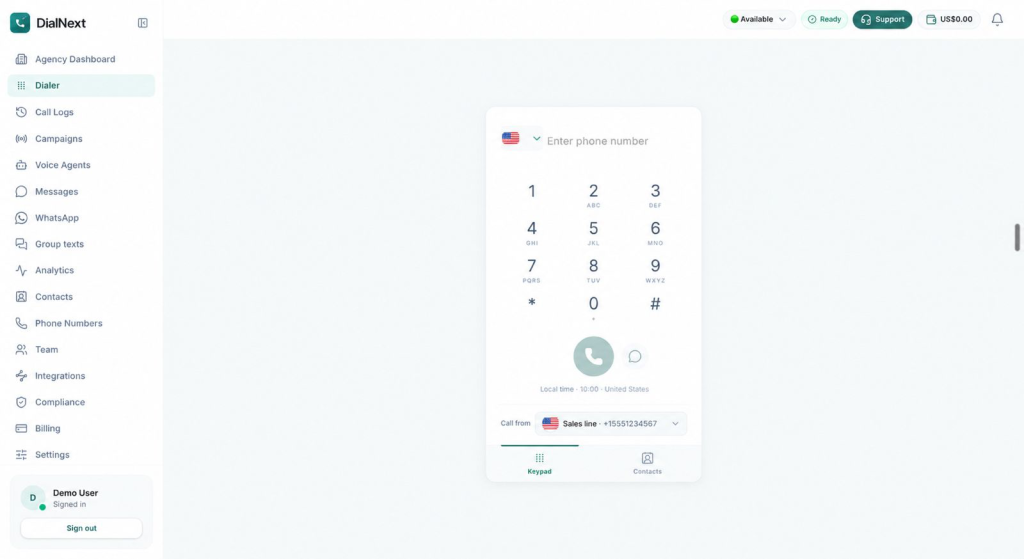
Next, open the Dialer dashboard. You can access the availability menu from the top-right corner of the dashboard.
Step 2: Open the Availability Menu
In the top-right corner, locate your current status. It appears beside a green status indicator.
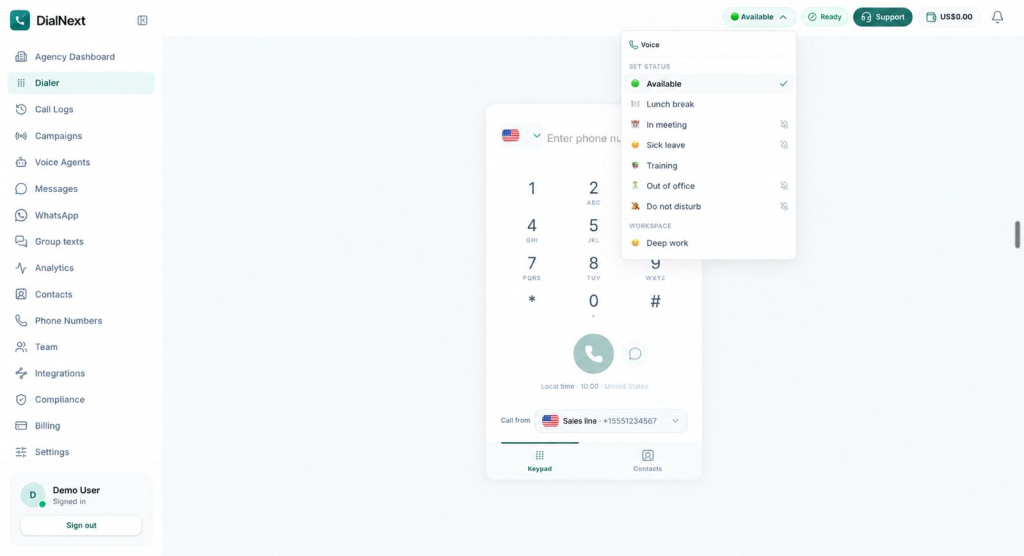
Click the status dropdown to view the available options.
Step 3: Select Your Preferred Status
Once the dropdown opens, you will see the available status options under the Voice section.
DialNext provides the following options:
- Available: Select this option when you are available.
- Lunch break: Use this status when you are taking a lunch break.
- In meeting: Select this when you are attending a meeting.
- Sick leave: Choose this when you are away due to illness.
- Training: Use this when you are participating in training.
- Out of office: Select this when you are away from work.
- Do not disturb: Select this option when you want to indicate that you are unavailable.
Click the status that matches your current situation.
Step 4: Check Your Updated Status
After selecting an option, the status displayed in the Dialer dashboard updates to reflect your selection.
For example, if you select Lunch break, the dropdown displays Lunch break instead of Available.
Therefore, you can use the same menu whenever you need to update your availability.
Understanding Voice and Workspace Status Options
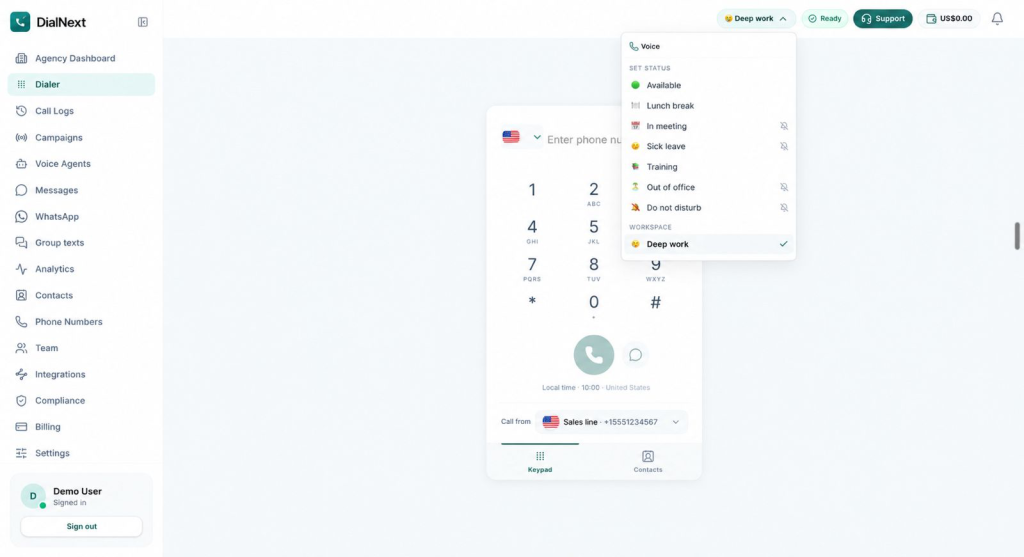
The availability dropdown in DialNext contains separate sections for Voice and Workspace.
Voice Status Options
The Voice section includes the following options:
- Available
- Lunch break
- In meeting
- Sick leave
- Training
- Out of office
- Do not disturb
These options let you indicate your current work or availability status.
Workspace Status Option
The Workspace section includes the Deep work option.
You can select it from the same availability dropdown when you want to indicate that you are focused on deep work.
How to View Agent Availability in the Team Members Section
Besides updating your own status, you can also view team member information from the Team Members section.
Follow these steps:
Step 1: Open the Team Members Page
From the DialNext dashboard, navigate to the Team section in the left sidebar.
Open the Members tab to access the team member list.
Step 2: Review Team Member Information
The Members page displays team information in a table.
You can find the following details:
- Person: Displays the team member’s name and email address.
- Role: Shows the assigned role, such as Owner, Admin, or Member.
- Status: Displays the member’s presence status, such as Available or Offline.
- Voice: Shows the voice status, such as Ready or Offline.
- Actions: Provides available member management actions.
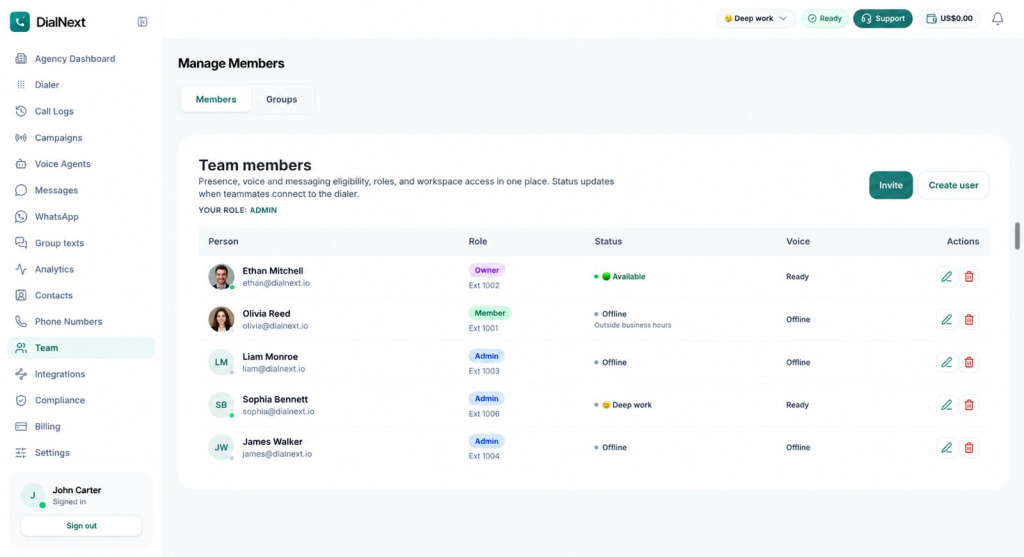
Additionally, the page brings presence, voice and messaging eligibility, roles, and workspace access information together.
This makes it easier to review team member details from one place.
Important Things to Know About Agent Availability
Before managing your availability in DialNext, keep these points in mind:
- Your current status is displayed in the top-right corner of the Dialer dashboard.
- You can update your status using the availability dropdown.
- Voice and Workspace options appear as separate sections.
- The Team Members page displays member status and voice status in separate columns.
- The available status options should be selected according to your current work situation.
Please note that the displayed Status and Voice indicators are separate fields. Their exact operational effects should not be assumed to be the same.
Frequently Asked Questions
1. Where can I find Agent Availability in DialNext?
You can find your availability status in the top-right corner of the Dialer dashboard. Click the status dropdown to view the available options.
2. Which availability statuses are available in DialNext?
The Voice section includes Available, Lunch break, In meeting, Sick leave, Training, Out of office, and Do not disturb. The Workspace section also includes Deep work.
3. How can I change my availability status?
Open the availability dropdown in the top-right corner of the Dialer dashboard. Then, select the status that matches your current situation.
4. Where can I view team member availability?
Navigate to the Team section from the left sidebar and open the Members tab. The table displays team member information, including Status and Voice.
5. What is the difference between Status and Voice in the Team Members section?
The Team Members page displays Status and Voice in separate columns. Status can show values such as Available or Offline, while Voice can show values such as Ready or Offline.
Related Articles
You may also find these DialNext guides helpful:
- Call Routing System: What Is It and How Does It Work?
- Outbound Calling Efficiency: 10 Strategies for Sales Teams
- What Happens After a Business Call? How to Build a Better Post-Call Workflow
Need Help with Agent Availability?
If you have questions about managing your availability or need assistance with your DialNext account, contact the DialNext Support Team.
We’re here to help you!